 Documentation
Veeam backup suite
To connect CESNET S3 storage, at least the Veeam ENTERPRISE edition is required.
VEEAM itself cannot create buckets; it can only connect to existing ones.
To create a bucket, use aws tool or s3cmd, or during storage configuration let us create the bucket(s) for you.
Procedure for Connecting in Veeam
For operational reasons, it is very important to set a limit on the number of concurrent connections. Otherwise, you risk temporary suspension of your account, because without this limitation Veeam behaves too aggressively and limits other users using the same S3 access gateways.
Instructions on how to correctly set this limit can be found in step 4. If you already have an S3 connection configured, do not forget to adjust it.
Setup
-
In the left menu, select Backup Infrastructure
-
Click the Add Repository button
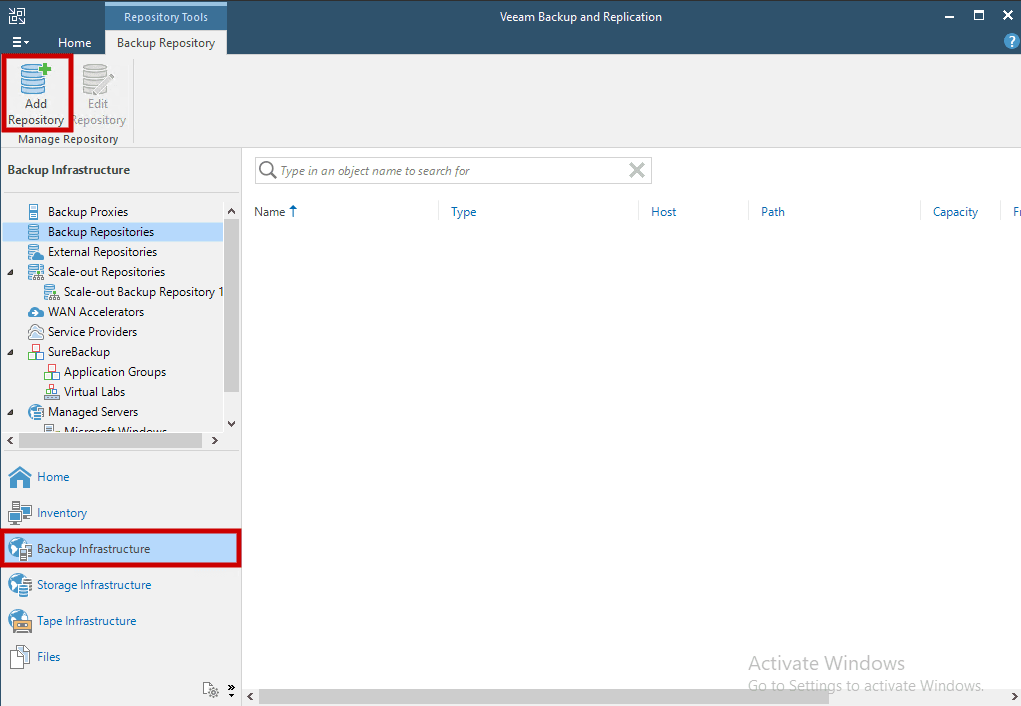
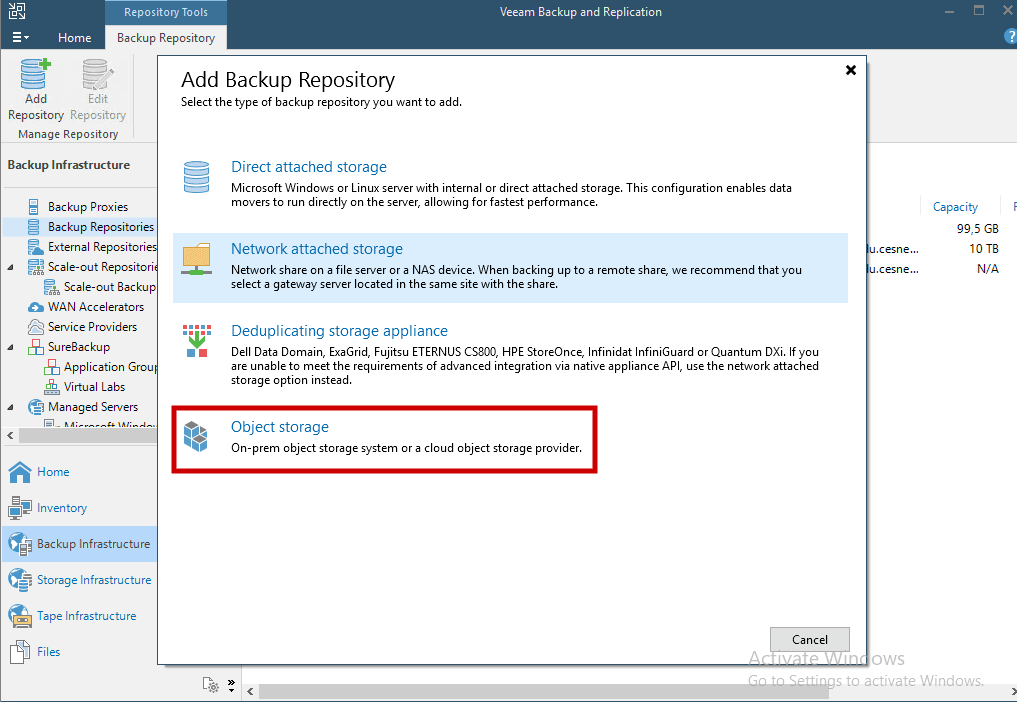
- Select Object storage
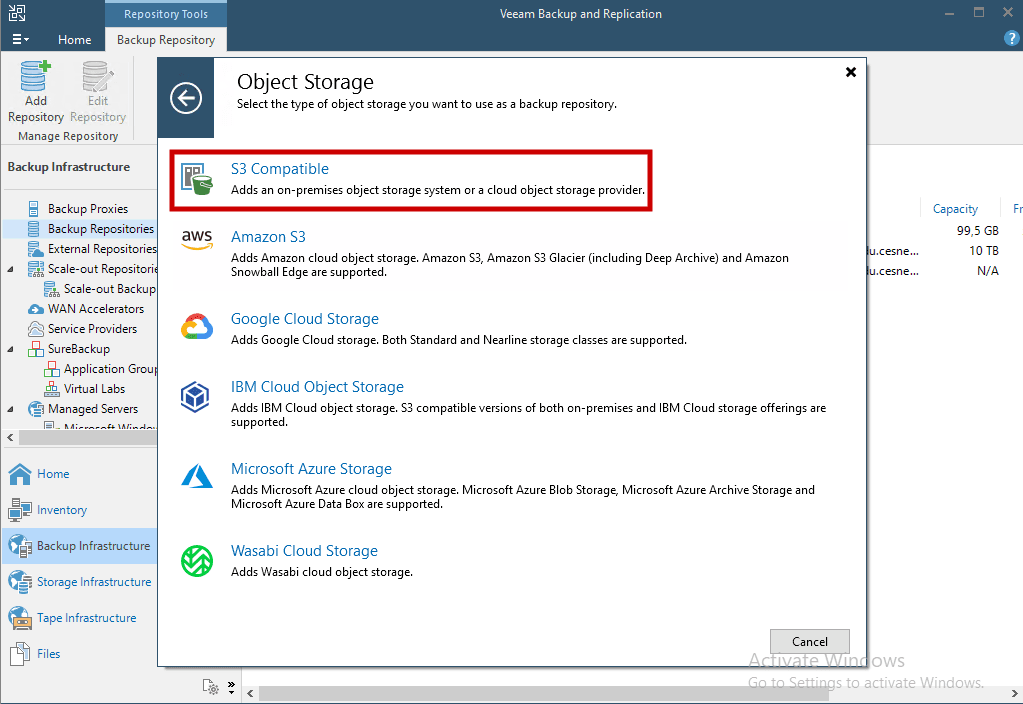
- Select “S3 Compatible”
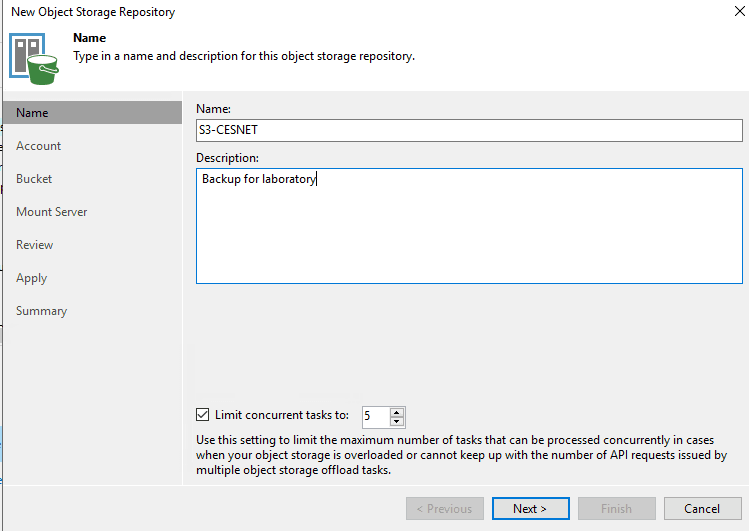
- Fill in the repository Name and Description, then check Limit concurrent tasks to and set the value to 5 then Click Next.
For operational reasons, it is very important to set a limit on the number of concurrent connections. Without this limitation, Veeam behaves too aggressively and limits other users using the same S3 access gateways, which may lead to temporary account suspension.
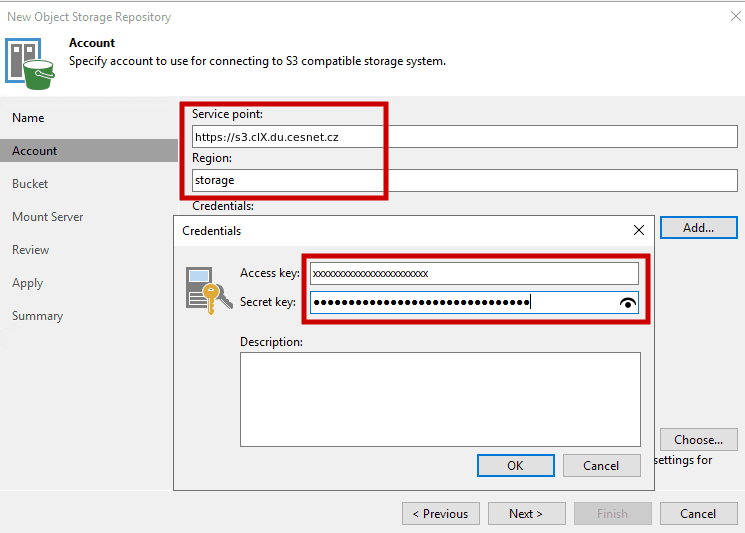
- Fill in the Service point according to the provided information.
In the Region field, enter:storage
The “Service point” URL has the form https://s3.clX.du.cesnet.cz and represents the name of the S3 object storage.
- cl1 – https://s3.cl1.du.cesnet.cz
- cl2 – https://s3.cl2.du.cesnet.cz
- cl3 – https://s3.cl3.du.cesnet.cz
- cl4 – https://s3.cl4.du.cesnet.cz
- cl5 – https://s3.cl5.du.cesnet.cz
-
Add credentials using Add
-
Fill in the provided Access key and Secret key
-
Click Next
-
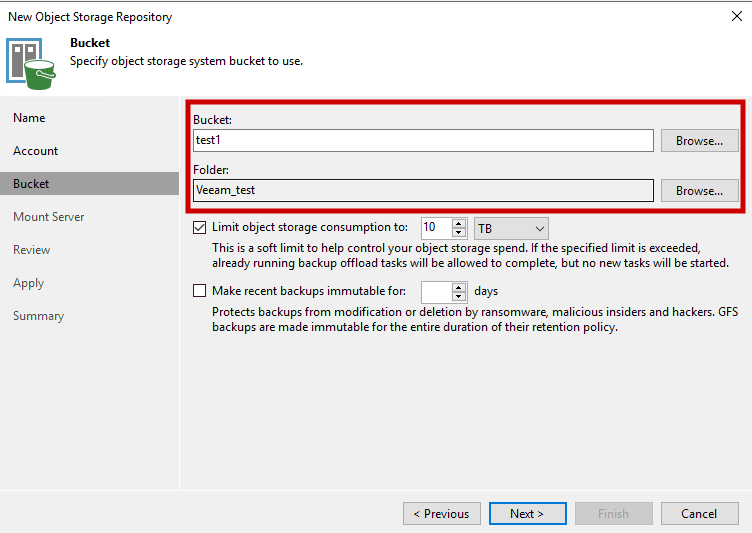
Select the Bucket and Folder using the Browser buttons.
-
The Limit setting can be filled in optionally (not required)
-
Do not check Make recent backups immutable, unless you want to use the WORM model:
https://du.cesnet.cz/cs/navody/object_storage/cesnet_s3/veeam_worm/startVeeam allows you to prevent deletion of data from object storage by making the data temporarily immutable, protecting it from malware activity by maintaining multiple versions of a single backup.
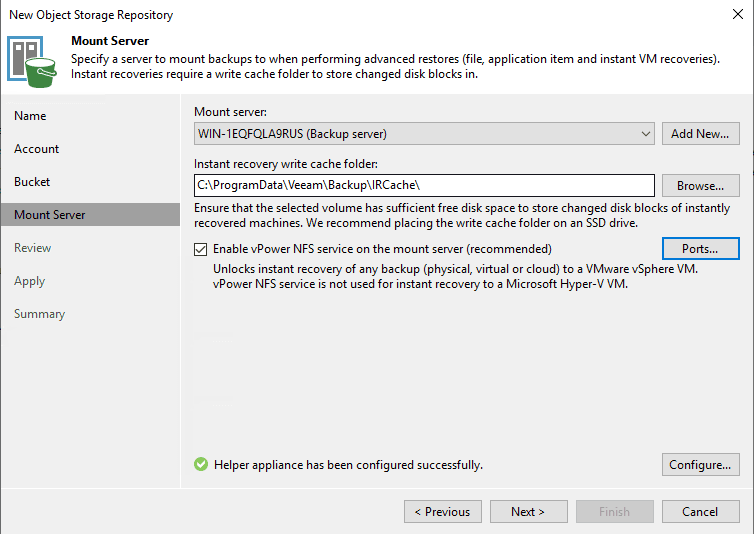
- Select a server
The list of Mount Servers contains only Microsoft Windows servers that have been added to the backup infrastructure.
If the server is not yet added, click Add New on the right to open the New Windows Server wizard:
https://helpcenter.veeam.com/docs/backup/vsphere/add_windows_server.html?ver=120
-
Select the Instant recovery write cache folder, where the cache created during mount operations will be stored
-
Check the recommended option Enable vPower NFS
https://helpcenter.veeam.com/docs/backup/vsphere/vpower_nfs_service.html?ver=120
Next, review which components will be processed on the mount server and their status.
After review, click Apply
Configuration Confirmation (Apply). A validation check will run, which should be allowed to complete. Your settings will be saved to the configuration database and backup infrastructure objects will be created.
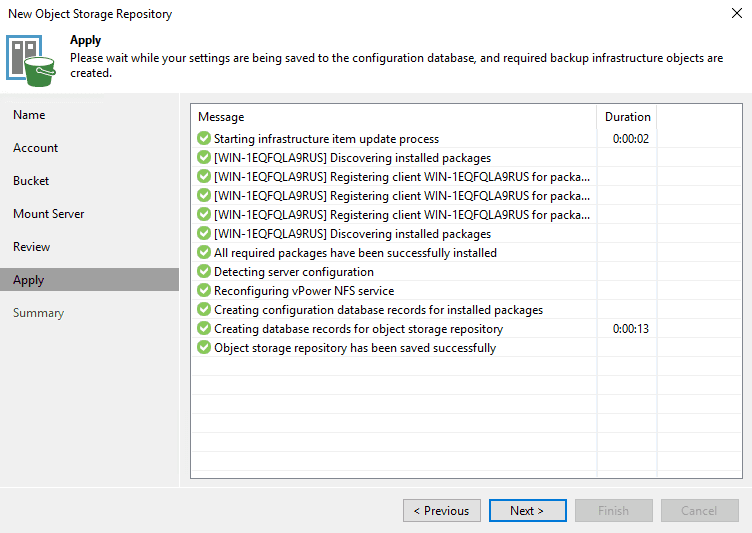
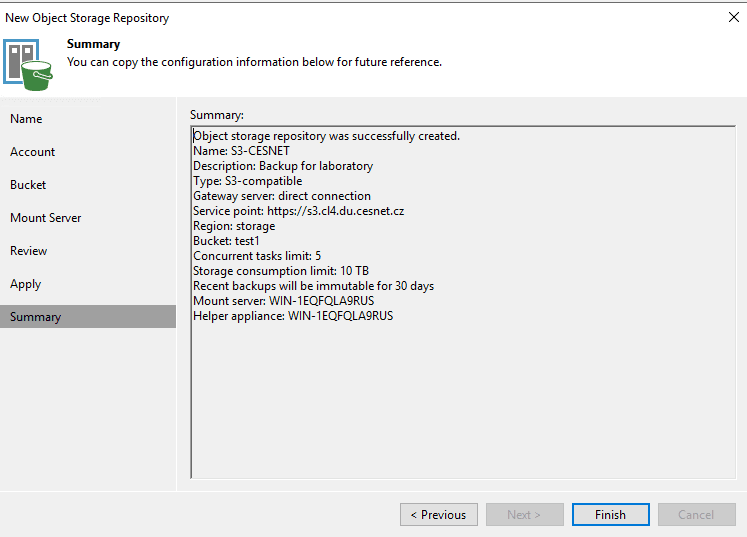
Review the details of the newly created repository and click Finish to complete the setup.
Configuring Larger Block Sizes in Veeam
Thanks to backup technology, backed-up data is divided into data blocks, which are then stored in S3 as individual objects. A large amount of backed-up data is therefore converted into a large number of objects in S3. This can cause issues with the S3 endpoint.
To mitigate this issue, it is recommended to configure backups to use larger block sizes.
Registry Configuration
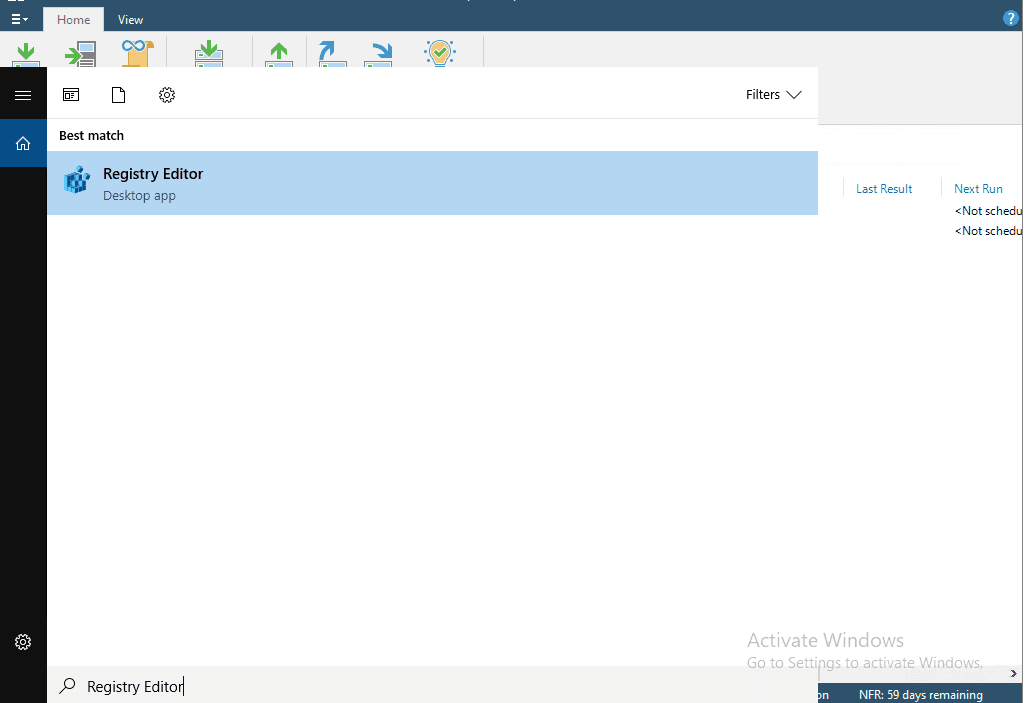
In the search field, type Registry Editor and launch it.
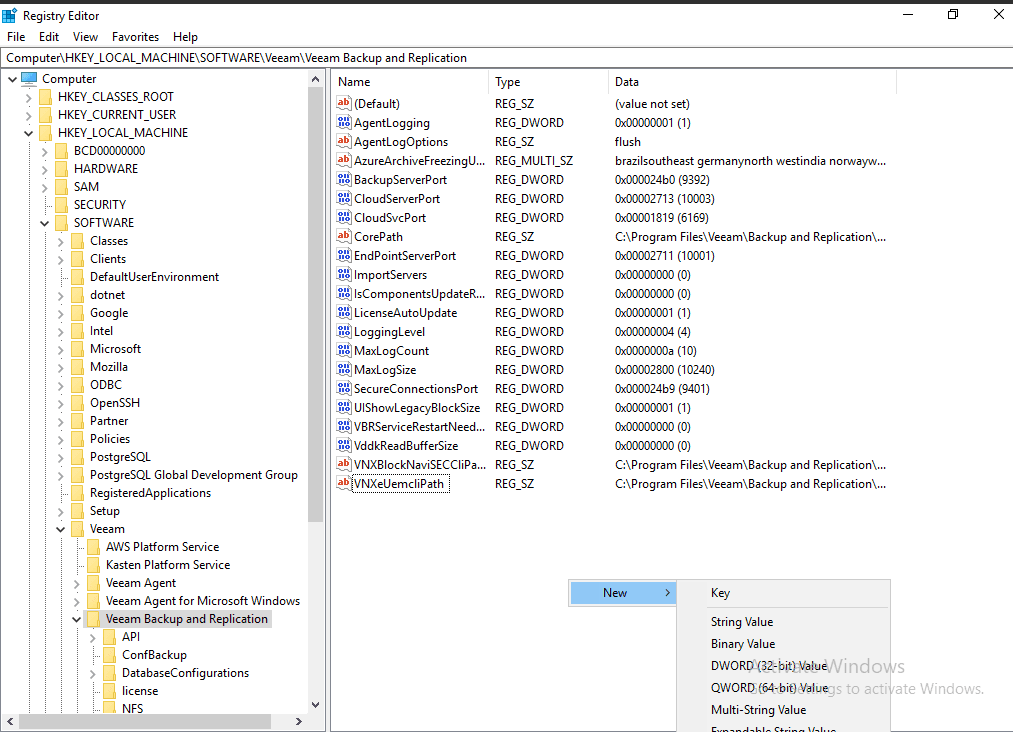
In the Veeam Backup and Replication directory - the path is:
\HKEY_LOCAL_MACHINE\SOFTWARE\Veeam\Veeam Backup and Replication
then right-click and select New, then choose DWORD and create a new registry key.
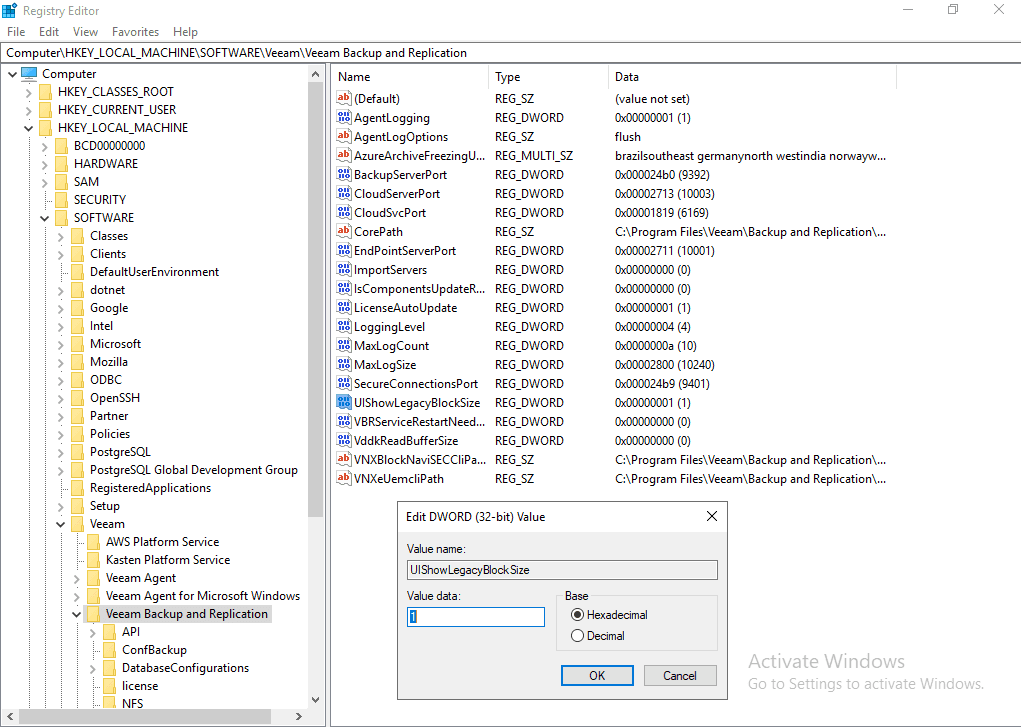
Next, edit the newly created registry key, rename it to UIShowLegacyBlockSize, and set the Value data to 1. Click OK.
Configuring Block Size in Veeam
Connect to Veeam and set the object size to 8 MB.
Proceed as follows:
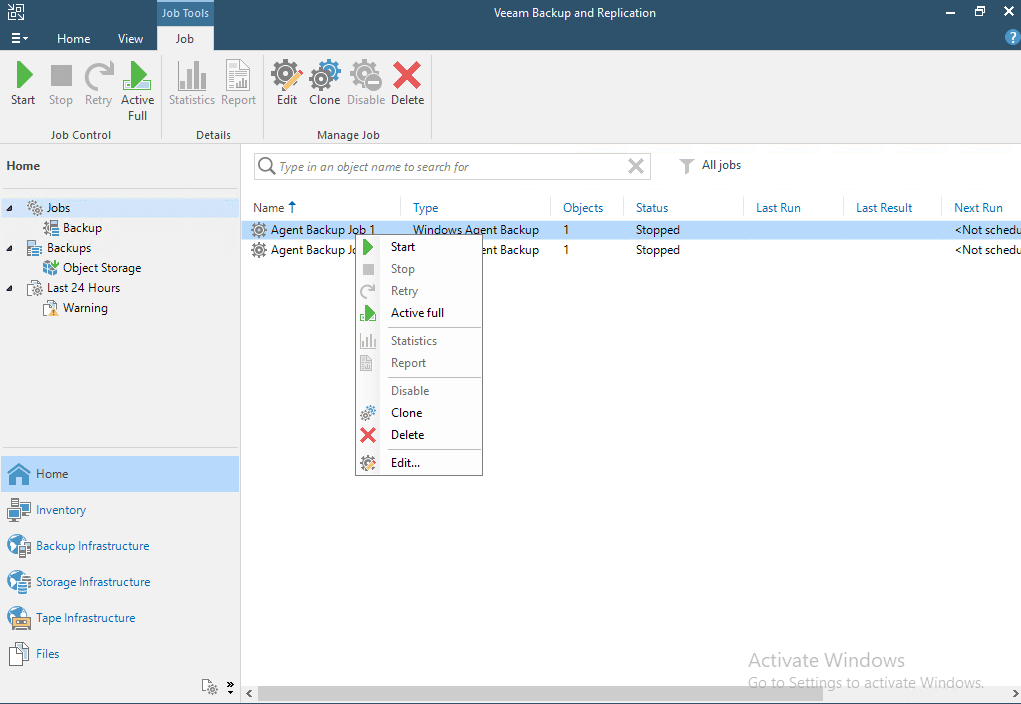
In Jobs, right-click the job and select Edit.
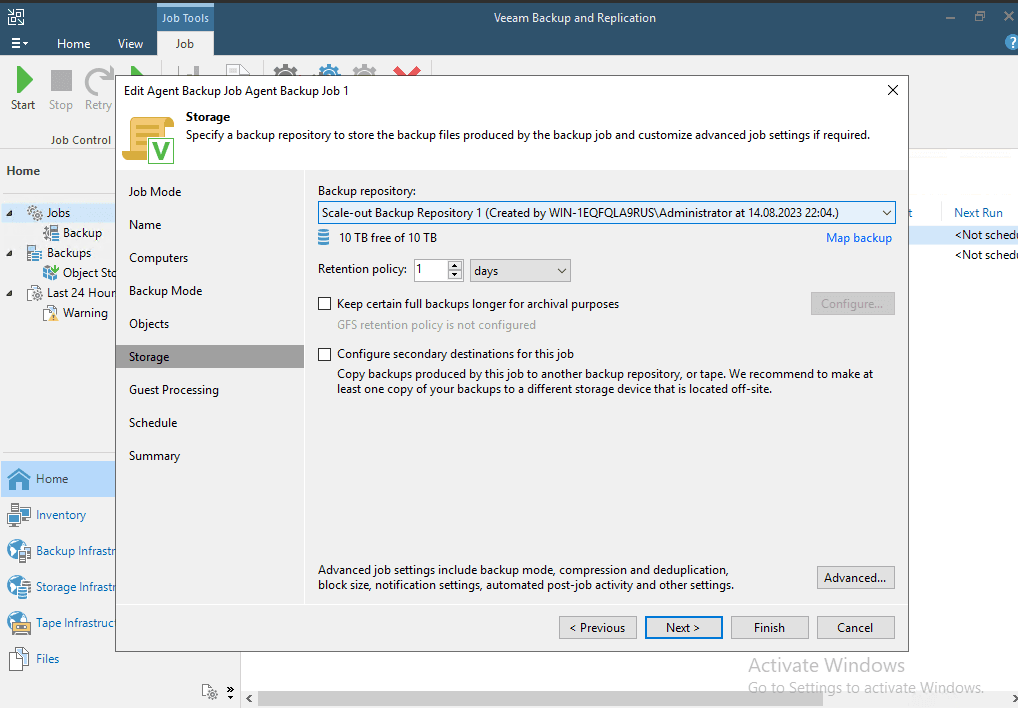
Click on Storage.
Then select Advanced.
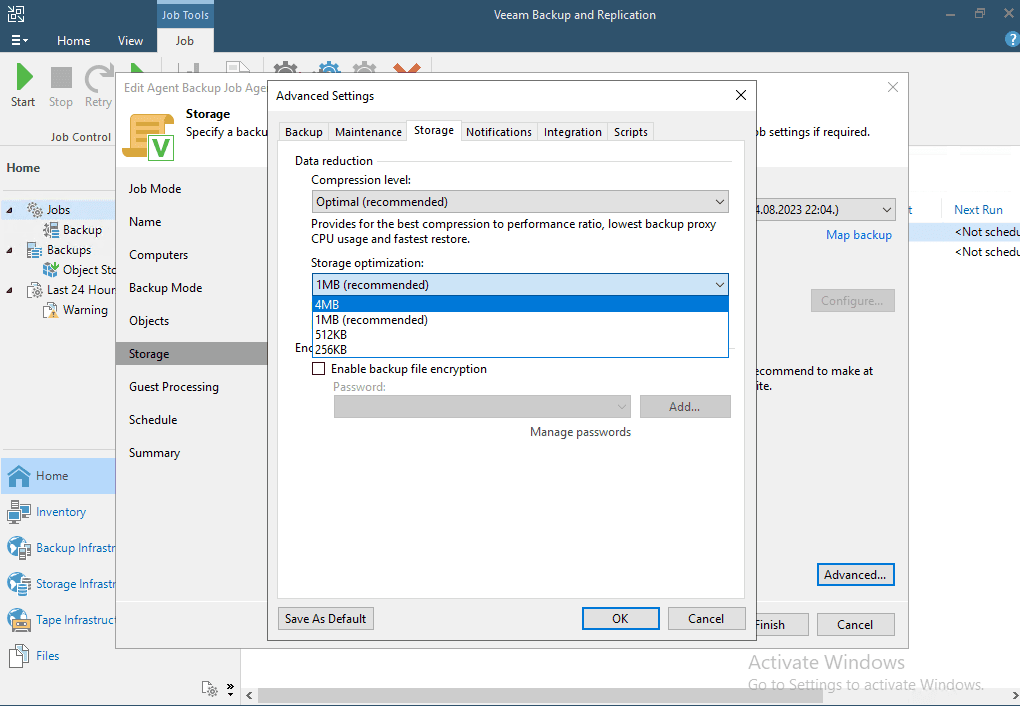
In the Storage optimization field, switch the value to 8 MB.
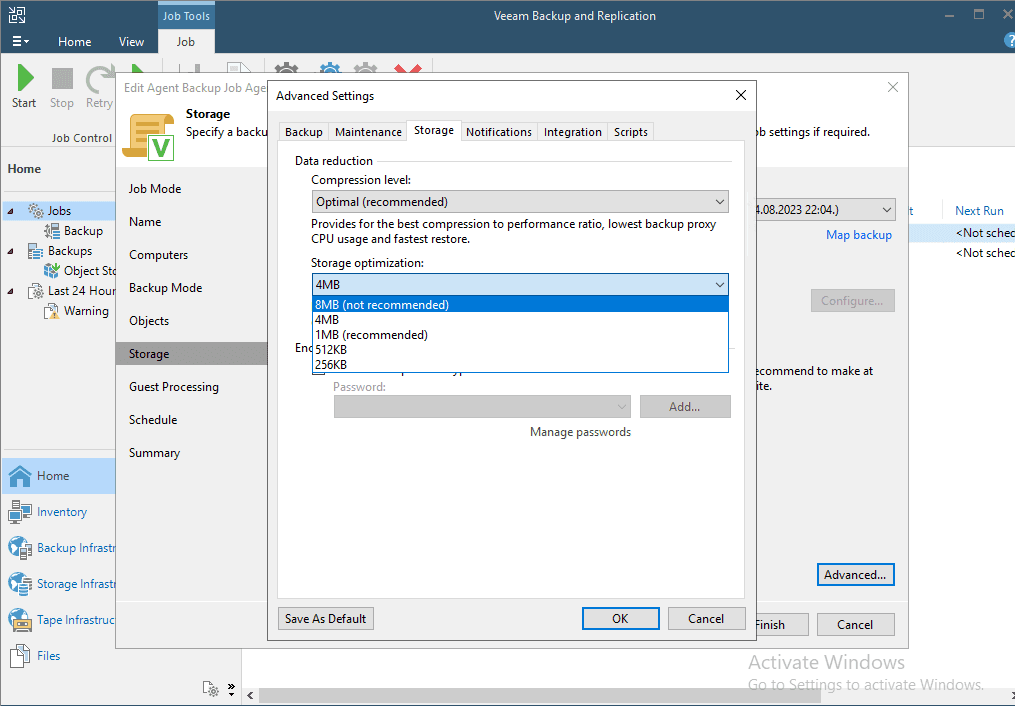
Confirm by clicking OK.
Storing an excessively large amount of data in a single bucket is not recommended. As a general guideline, around 100 TB and 50 million objects can be considered a reasonable maximum.
If larger data volumes are required, it is advisable to use multiple buckets and distribute the data across them. By default, up to 1000 buckets are allowed. If necessary, this limit can be increased.
Recommendations for Monitoring Configuration in Veeam
To provide an overview of storage utilization, we operate an accounting service.
Through the web interface, you can view information about your storage, including quota, utilization, and the number of objects per tenant and user.
Accounting service
https://accounting.du.cesnet.cz/
In the user selector drop-down menu, you can browse individual users, or click the VO button in the top-right corner and then select Members overview in the central panel to see an overview of all users.
It is recommended to configure notifications below the agreed quota limit. This gives you sufficient time to adjust Veeam settings before the quota is exceeded and backups are subsequently stopped.
For example, setting alerts at 80–90% capacity is recommended to allow timely response.
To ensure better management and performance optimization, we recommend creating additional buckets and evenly distributing data among them. This approach helps prevent performance issues that may arise with a large number of objects or a large data volume in a single bucket. Even data distribution also increases the flexibility and scalability of your backup infrastructure.
To keep your Veeam Backup & Replication infrastructure continuously monitored and to ensure timely alerts about potential issues or limits, we recommend the following steps:
1. Monitoring Setup with Veeam ONE Community Edition
Veeam ONE Community Edition is a free tool that provides comprehensive monitoring of your backup infrastructure, including real-time monitoring, alerts, and reporting. We recommend configuring it for:
-
Real-time monitoring: Monitor the performance of backup servers, storage, and other critical infrastructure components.
-
Notifications: Set alerts for events such as storage capacity thresholds, backup failures, or insufficient resources.
-
Automated reports: Use reporting features to regularly generate infrastructure health overviews.
-
Install and configure Veeam ONE Community Edition
-
Configure alarms in the Alarm Management section to monitor key infrastructure parameters.
-
Set up email notifications in Options > Email Settings so the system automatically alerts you to critical events.
2. Using PowerShell Scripts for Monitoring
If you prefer scripting or require a lightweight and specific solution, you can create PowerShell scripts to monitor storage utilization and other important parameters and send email notifications.
- Create a PowerShell script that checks storage status and run it regularly using Task Scheduler.
- Configure email notifications directly within the script to alert you when issues such as storage capacity limits are detected.
Configuring monitoring and notifications is essential for managing your backup infrastructure. It helps prevent outages and issues that could impact data recoverability and overall system availability.