 Documentation
Synology Backup to S3
To backup data from a Synology file server to the CESNET S3 storage, please make sure you know the endpoint address (like s3.cl4.du.cesnet.cz) and have the access key and the secret key avilable.
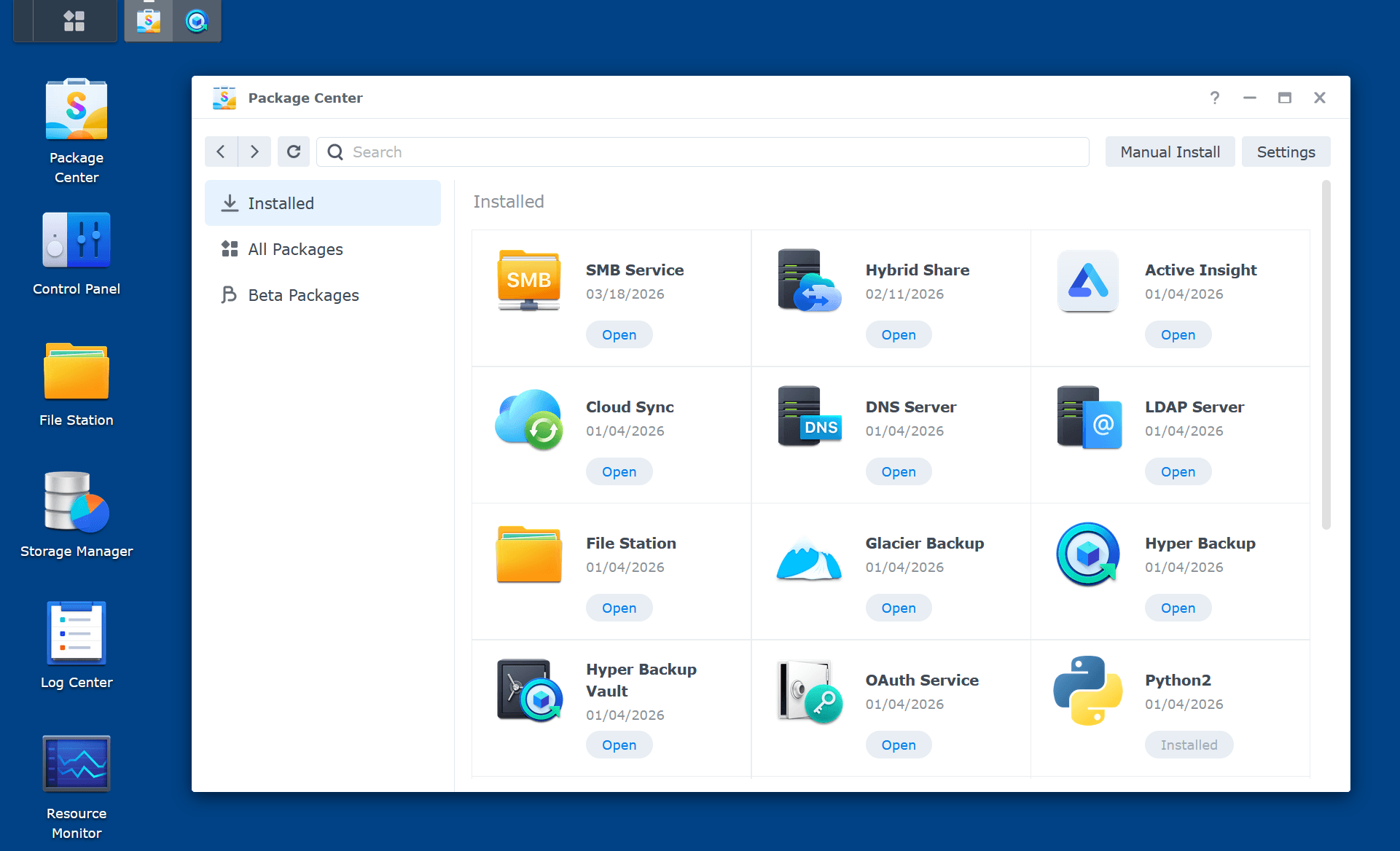
Open Synology web interface and log in. Open Package Center and run Hyper Backup. If Hyper Backup is not installed, install it here.
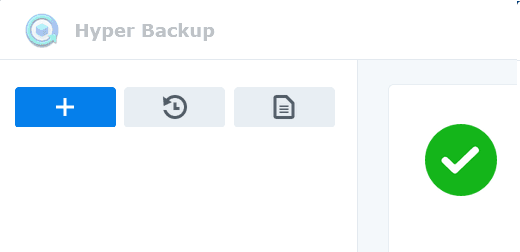
In Hyper Backup window, click the + button to start configuring a new automatic backup task.
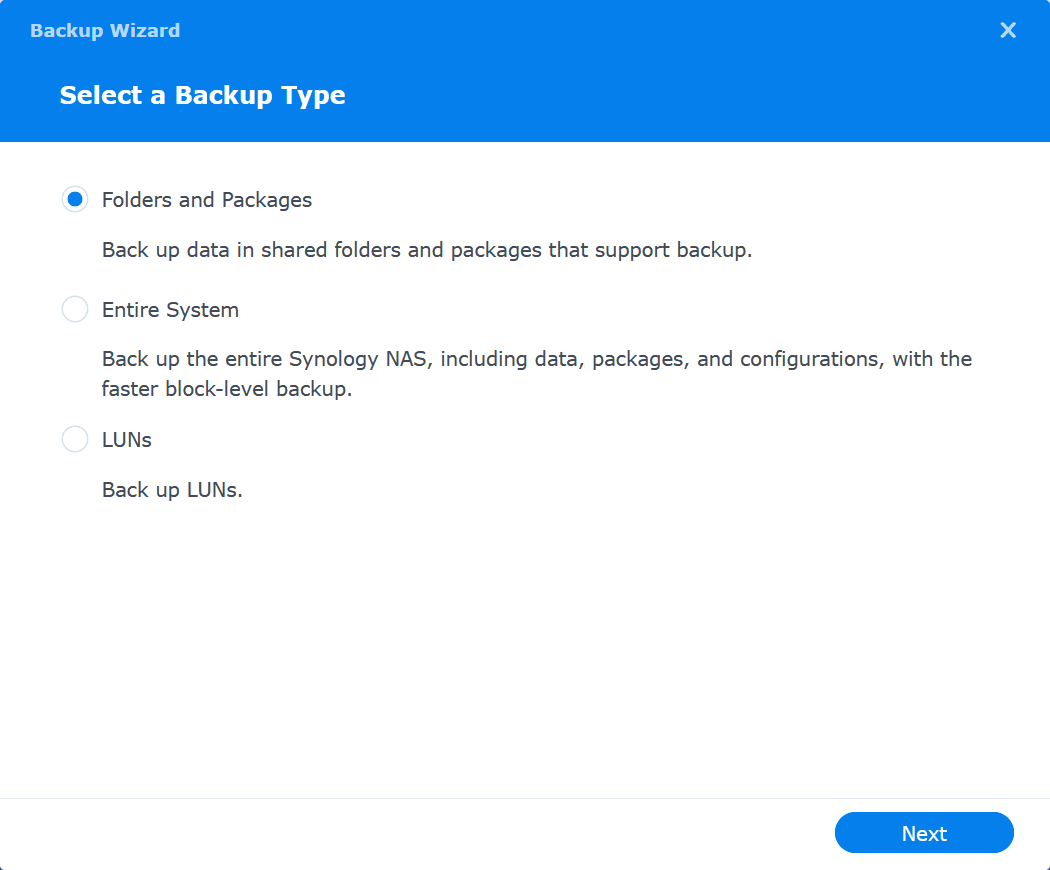
Select an area of data you want to back up - start with Folders and Packages if you are not sure; click Next.
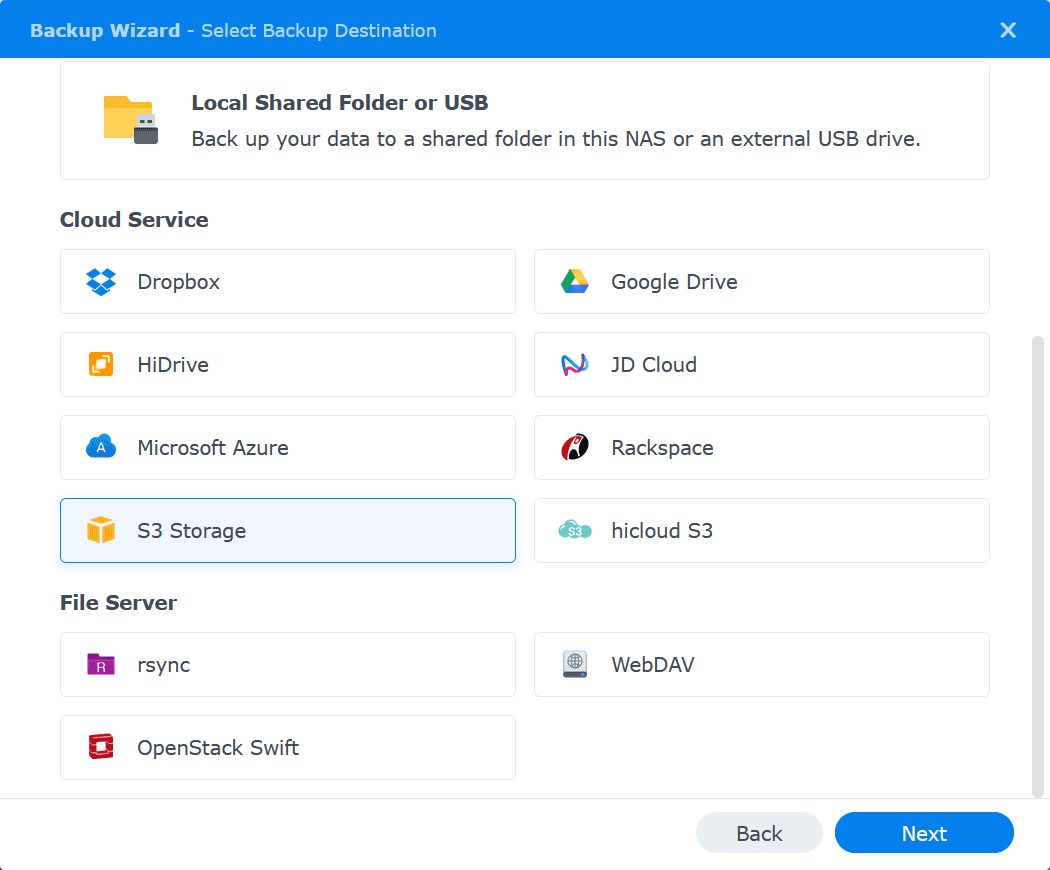
Select S3 Storage from the list.
Select Custom Server URL as S3 Server and complete the details about the backup target - endpoint address to Server address, access key as Access Key, and secret key as Secret Key. Choose v4 as Signature Version and Path Style as Request Style. Select an existing bucket or create a new one. Enter the name of a directory in the selected bucket where backups will be stored.
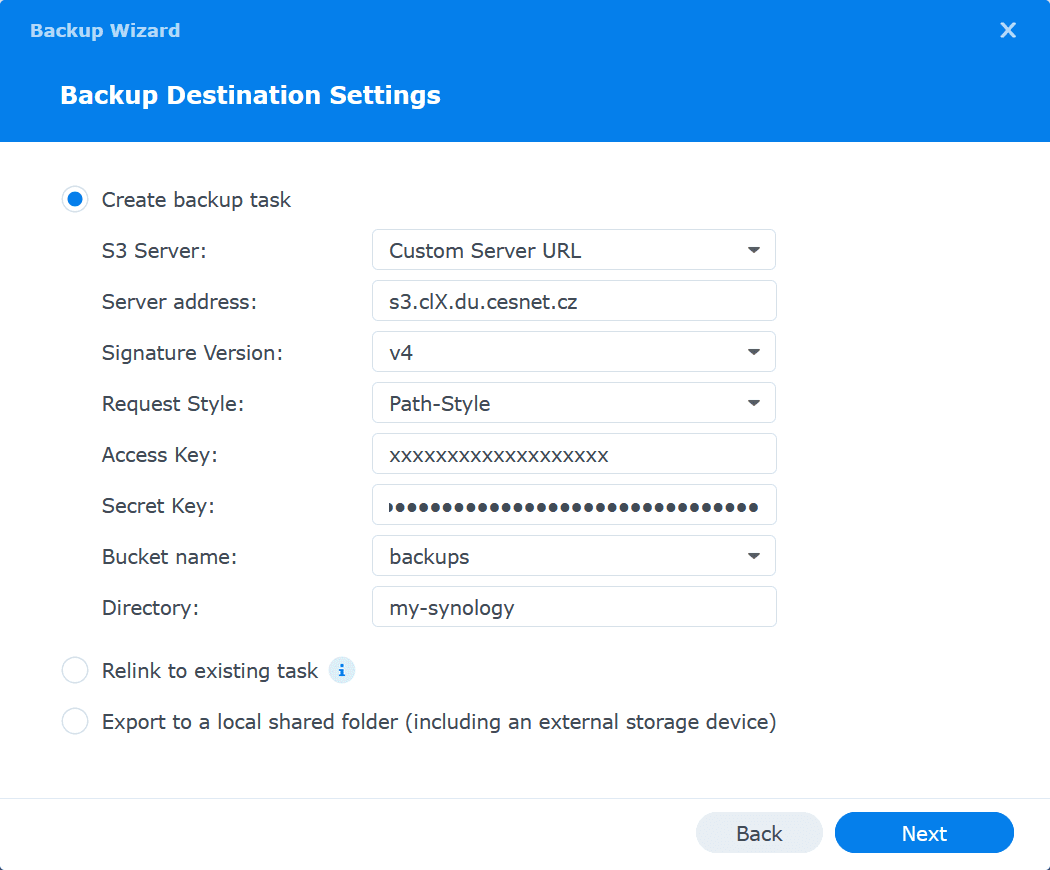
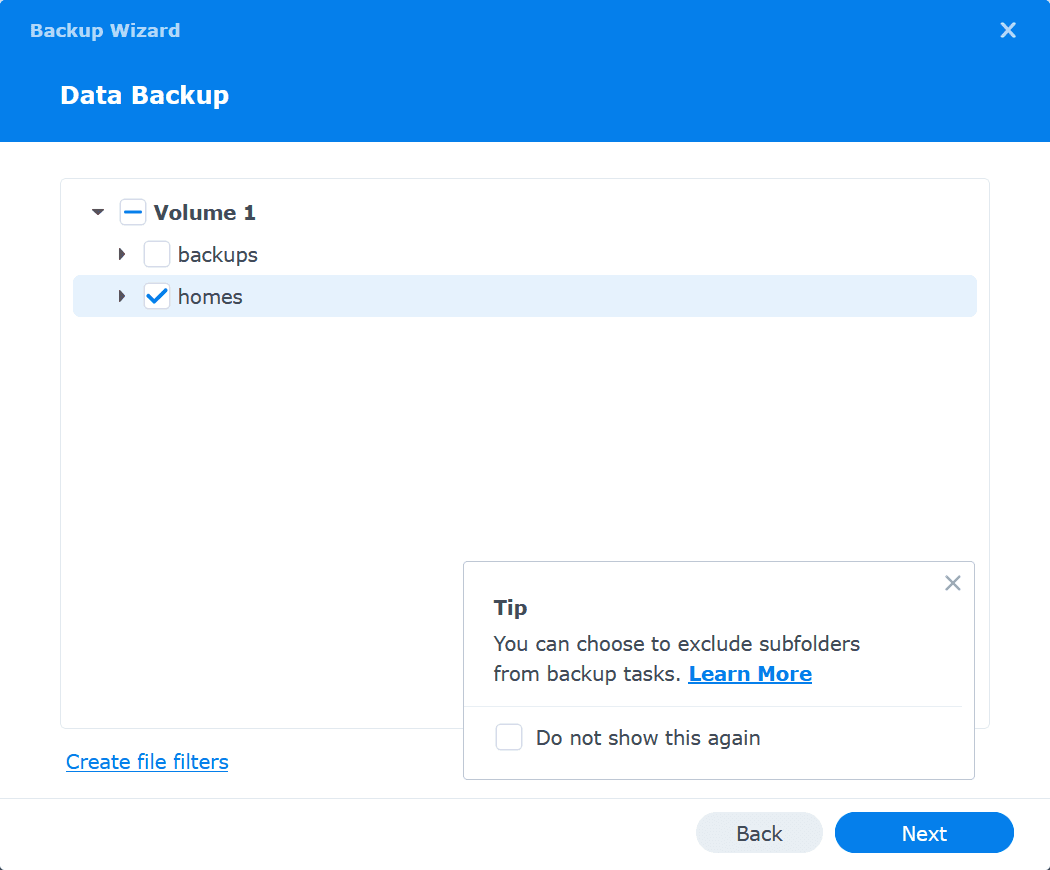
Select what to backup.
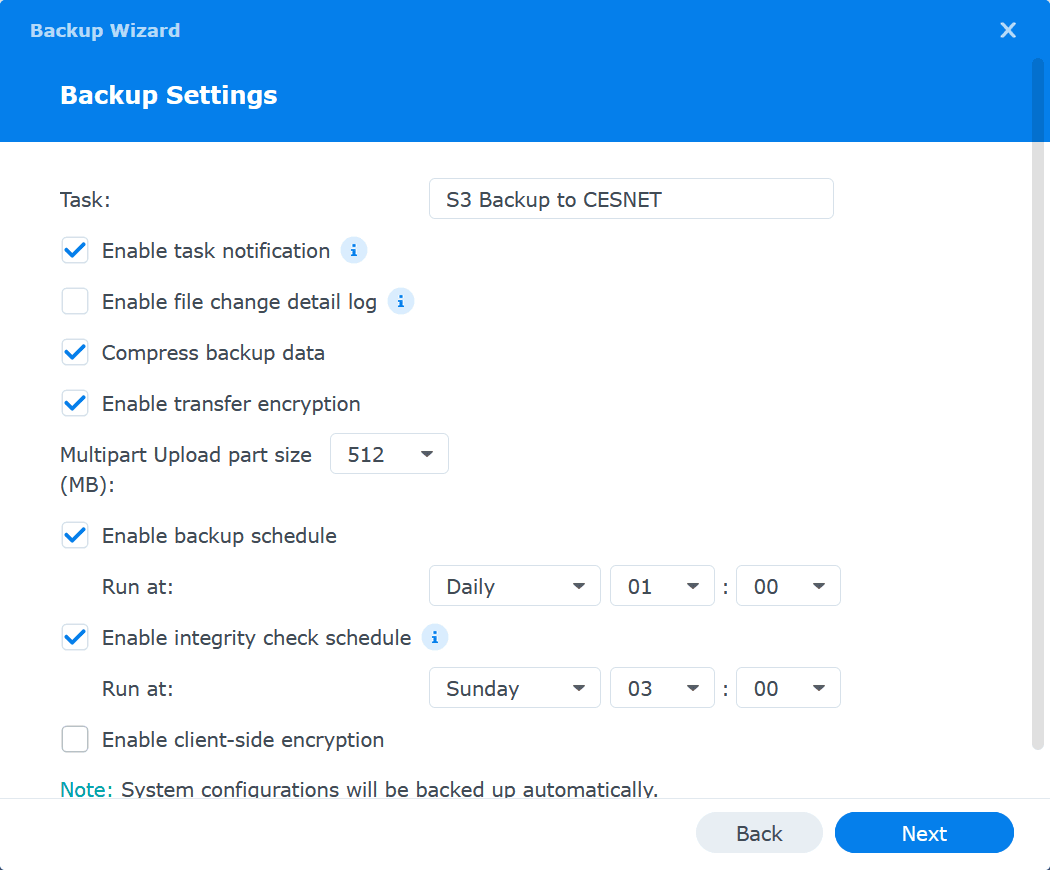
Set details of the backup parameters and scheduling. You can enable a client-side encryption here; please record the encryption password as tha data cannot be recovered if the password is lost.
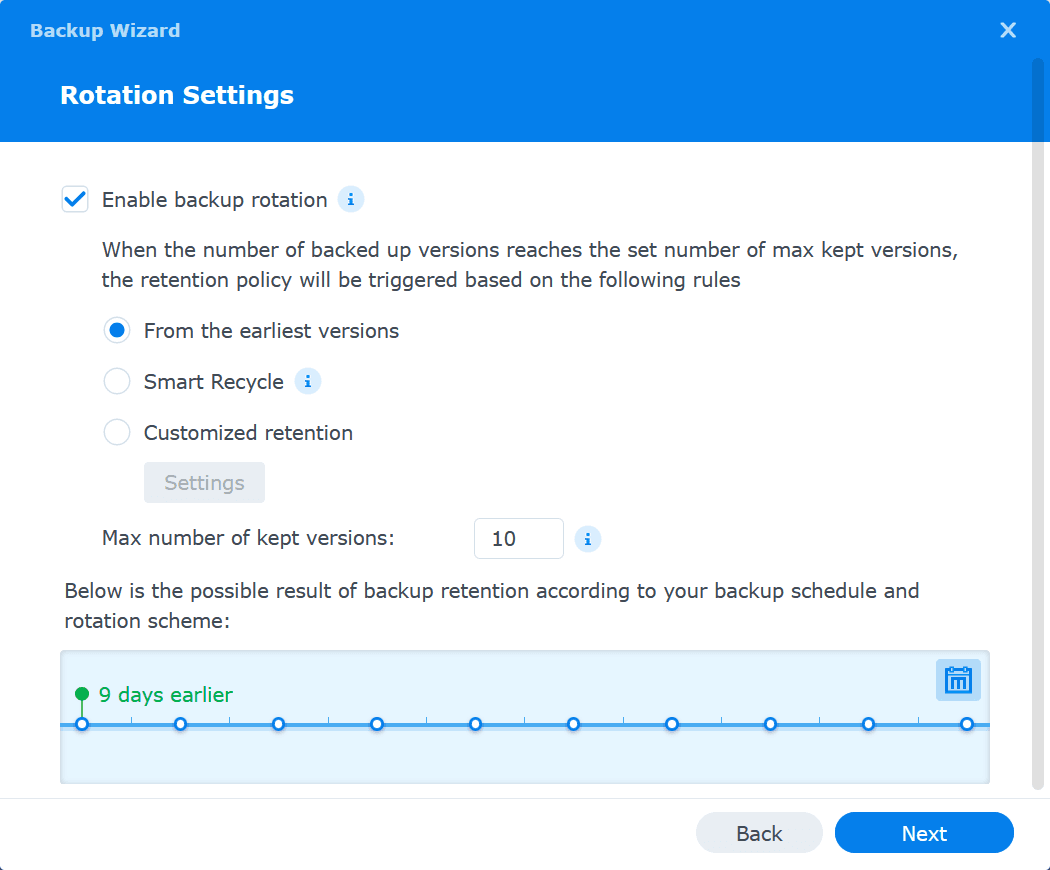
Configure backup rotation (select, how many old backups are kept until the oldest one is deleted).
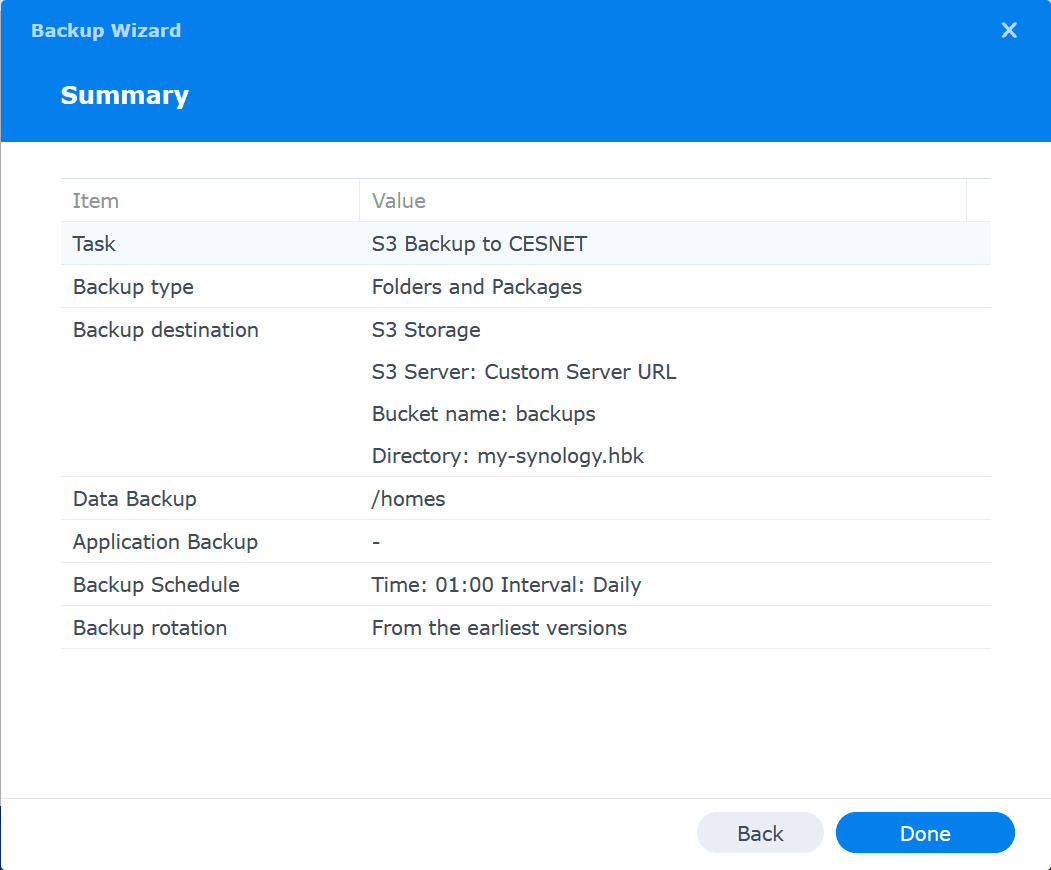
Check the summary information and confirm the setup by clicking Done.
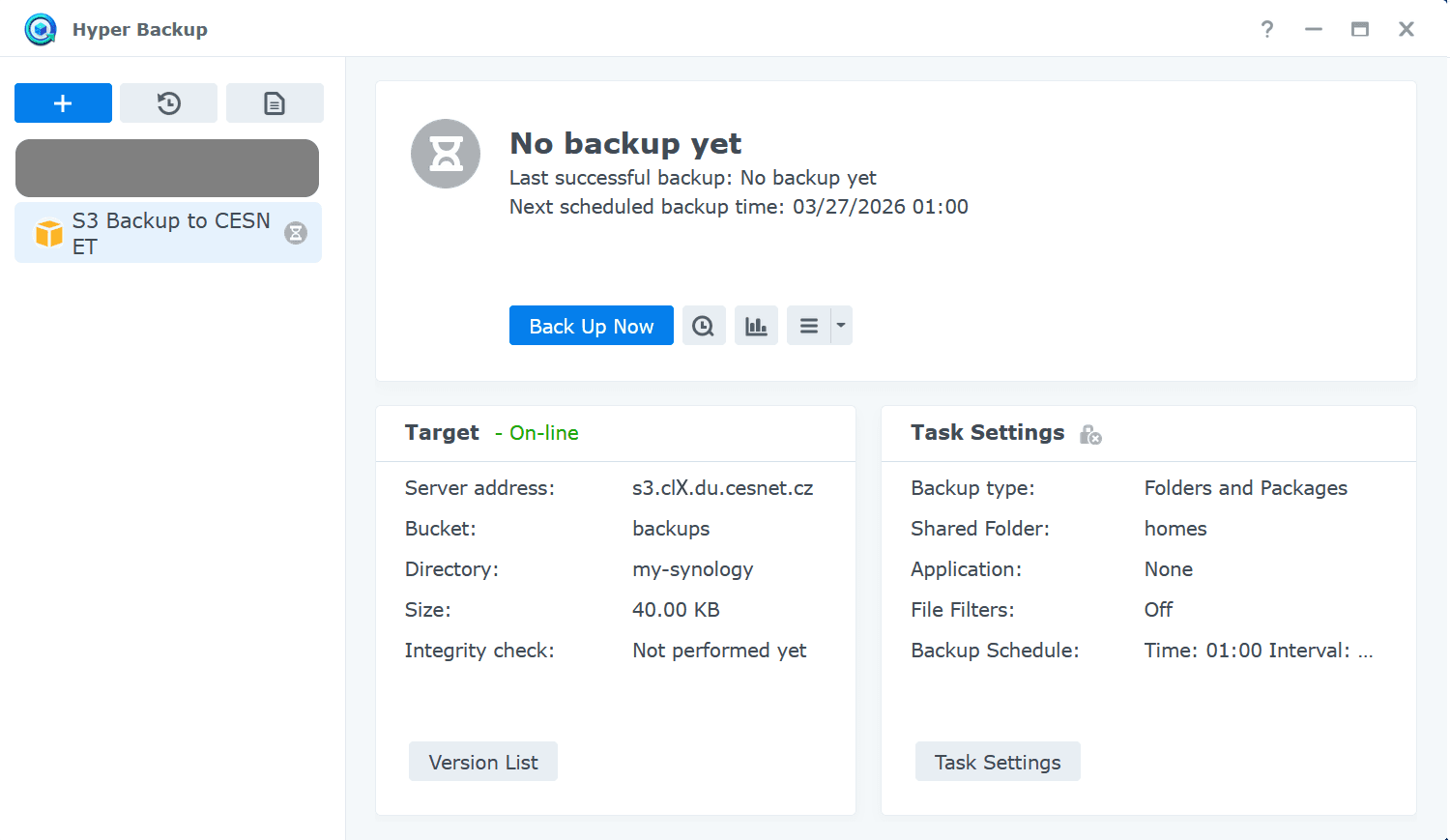
The home page of the Hyper Backup program shloud now contain the backup setup you just configured. The program will run the configured backup as scheduled during the setup process; to run an immediate backup or to test the functionality click the Backup Now button.
To check the presence of the backup, use an other S3 client to display the contents of the selected bucket; you should see a directory-name.hbk/ folder containing a set of folders and files. Do not modify these files directly; to keep the backup consistent, they can only be manipulated by the Synology Hyper Backup program.